Process management is daily work for Linux support teams. When an API is slow, a batch job hangs, or a host runs at 100% CPU, you need fast and safe actions. The core tools are ps, top, kill, nice, and systemd.
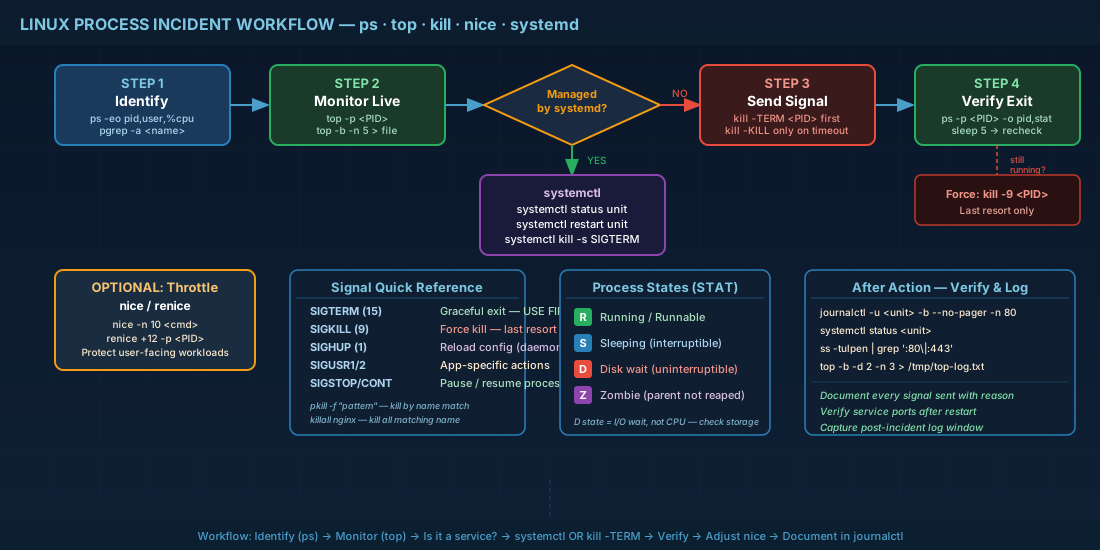
Use these tools as a sequence: identify the right process, watch live behavior, send the least risky signal, adjust priority if needed, then manage the service with systemd.
How Linux represents a process
A process is a running program instance. Linux gives each process a PID, an owner, resource counters, and a state. Common states are R (running), S (sleeping), and D (uninterruptible sleep, often disk I/O wait).
For beginners, the key point is this: process names are not enough. Always verify PID, user, and command path before you act.
# Show a compact process tree with parent-child relation
ps -eo pid,ppid,user,stat,ni,cmd --sort=ppid | less

# Show only processes for one service account
ps -u www-data -o pid,ppid,%cpu,%mem,stat,cmd

# Find all PIDs for a process name, then inspect full command lines
pgrep -a nginx
Production consequence: on multi-tenant hosts, two apps can run with similar names. If you kill by name without checking full command lines, you can stop the wrong customer workload.
Using ps for accurate snapshots
ps gives a point-in-time snapshot. It is better than guessing from memory, and it is safer than immediately sending signals. Start with sort order and explicit columns so you can explain your decision in incident notes.
# Top CPU consumers right now
ps -eo pid,user,%cpu,%mem,etimes,stat,cmd --sort=-%cpu | head -n 15

# Top memory consumers
ps -eo pid,user,%mem,rss,vsz,cmd --sort=-%mem | head -n 15

# Processes stuck for a long elapsed time (seconds since start)
ps -eo pid,etimes,stat,cmd --sort=-etimes | head -n 20

# Show one PID with thread count and cgroup path
ps -p 2481 -o pid,ppid,nlwp,%cpu,%mem,cmd,cgroup
Use etimes and stat together. A process at high CPU for two seconds may be normal startup. The same pattern for two hours is usually a fault, a loop, or a bad query.
Using top for live behavior
top is for moving problems: spikes, leaks, and periodic stalls. It updates every few seconds, so you can see whether load is stable or drifting upward. In interactive mode, press 1 for per-CPU view, M to sort by memory, and P to sort by CPU.
# Standard interactive view
top

# Watch only a few PIDs (comma-separated)
top -p 2481,2489,2510

# Non-interactive snapshot for incident logs (5 samples, 2s interval)
top -b -d 2 -n 5 > /tmp/top-sample.txt

# Show thread-level usage for one PID
top -H -p 2481
If load average is high but CPU usage is low, check I/O wait and blocked tasks. This often means storage latency, not a pure CPU bottleneck.
Stopping processes safely with kill and friends
kill sends a signal to a PID. The safest default is SIGTERM (15), which asks a process to exit cleanly. SIGKILL (9) is forced termination and cannot be handled by the target process. Use it only after a timeout and evidence that graceful shutdown failed.
# 1) Ask process to exit cleanly
kill -TERM 2481

# 2) Wait and verify
sleep 5
ps -p 2481 -o pid,stat,cmd

# 3) Force only if still present and impact is acceptable
kill -KILL 2481

# Signal by name pattern (be careful, validate first)
pkill -f "python3 /opt/app/worker.py"

# Reload config for daemons that support SIGHUP
kill -HUP 1320
Do not start with kill -9 in production. Forced termination can lose in-memory data, leave stale lock files, and trigger longer recovery after restart.
Record why you sent each signal so post-incident review is clear.
Controlling CPU priority with nice and renice
nice and renice adjust CPU scheduling priority. Niceness ranges from -20 (higher priority) to 19 (lower priority). Normal users can usually increase niceness value (lower priority) for their own processes. Lowering niceness value (raising priority) needs root privileges.
# Start a backup job with lower priority so interactive users stay responsive
nice -n 10 rsync -a /data/ /backup/

# Lower priority of an already running process
sudo renice +12 -p 2481

# Raise priority for a latency-sensitive process (root required)
sudo renice -5 -p 3310

# Verify niceness column
ps -p 2481,3310 -o pid,ni,cmd
Production consequence: if nightly jobs compete with user traffic, a small niceness change can reduce alert noise without code changes. It is not a fix for bad queries or memory leaks, but it is a useful control during peak hours.
Managing services with systemd instead of raw PIDs
For long-running applications, use systemctl first. Systemd tracks the whole service unit, child processes, restart policy, limits, and logs. Killing a single PID may not solve the problem because the service can auto-restart or leave helper processes behind.
# Check state, main PID, and recent log lines
sudo systemctl status nginx

# Restart service and follow logs from current boot
sudo systemctl restart nginx
sudo journalctl -u nginx -b --no-pager -n 80

# Stop and prevent auto-start on boot
sudo systemctl disable --now nginx

# Send a signal to all processes in the unit cgroup
sudo systemctl kill -s SIGTERM nginx

# Inspect unit limits and restart policy
systemctl show nginx -p Restart -p TimeoutStopUSec -p MemoryMax -p CPUQuota
Systemd gives safer control boundaries because you act on a named unit instead of hunting PIDs one by one.
Compatibility notes for Debian, Ubuntu, Fedora, and RHEL
The commands in this article work the same way on Debian 13.3, Ubuntu 24.04.3 LTS, Ubuntu 25.10, Fedora 43, and RHEL 10.1. RHEL 9.7 is compatible with the same process-management workflow.
- Package source: Debian and Ubuntu provide these tools through
procpsandsystemd. - Fedora and RHEL provide equivalent tools through
procps-ng,psmisc, andsystemd. - Minimal container images may omit
toporkillall; install required packages before incident response windows.
# Debian 13.3 / Ubuntu 24.04.3 LTS / Ubuntu 25.10
sudo apt update
sudo apt install -y procps psmisc systemd

# Fedora 43 / RHEL 10.1 / RHEL 9.7
sudo dnf install -y procps-ng psmisc systemd
A practical incident workflow
- Capture evidence with
psandtopbefore changing anything. - Decide whether the problem is one process, one service unit, or system-wide resource pressure.
- Use
SIGTERMfirst, then verify exit state. - If needed, adjust niceness to protect user-facing workloads while deeper fixes are prepared.
- Manage service lifecycle with
systemctland verify logs injournalctl.
# Example sequence for a stuck app service
ps -eo pid,user,%cpu,%mem,stat,cmd --sort=-%cpu | head
sudo systemctl status app-worker
sudo systemctl kill -s SIGTERM app-worker
sleep 5
sudo systemctl status app-worker
sudo journalctl -u app-worker -b --no-pager -n 100
This sequence keeps actions observable and documented.
Summary
Use ps for clear snapshots, top for live pressure, kill for controlled signaling, nice for CPU priority, and systemd for service-level control. The technical model is consistent across Debian 13.3, Ubuntu 24.04.3 LTS, Ubuntu 25.10, Fedora 43, RHEL 10.1, and RHEL 9.7, so one disciplined workflow can serve mixed Linux fleets.