New Linux technicians often jump straight to random commands when something breaks. That usually makes the outage longer. A better approach is to use a repeatable method: confirm the symptom, collect facts, test one hypothesis at a time, and verify the fix from the user point of view.
This article teaches that method with real case studies. The goal is simple: help you move from "I think this is fixed" to "I proved this is fixed." Examples and package names are aligned to Debian 13.3, Ubuntu 24.04.3 LTS, Ubuntu 25.10, Fedora 43, RHEL 10.1, and RHEL 9.7 where behavior overlaps.
a repeatable troubleshooting loop

Use the same loop every time. It keeps pressure low during incidents and gives your team clear notes for handover.
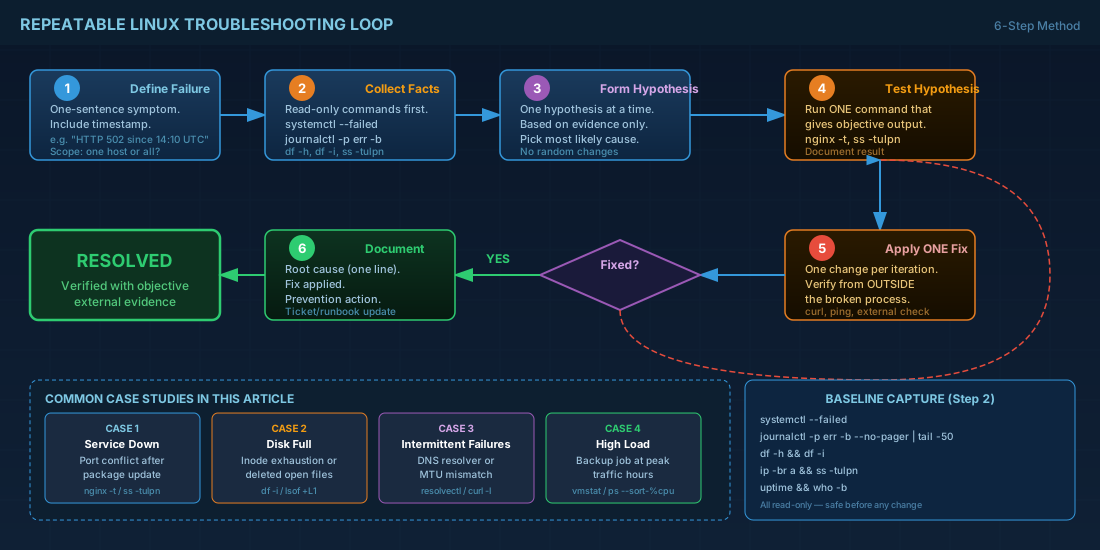
- Define the failure in one sentence. Example: "Users get HTTP 502 from the API since 14:10 UTC."
- Set scope. One host, one service, one network segment, or all of them?
- Collect baseline facts before changing anything.
- Pick one hypothesis and test it with a command that gives objective output.
- Apply one change. Re-test the original symptom, not just a local command.
- Record root cause, fix, and prevention step.
For beginners, this prevents panic changes that hide the real issue. For operators, it reduces repeated outages because the post-incident note has enough detail to build monitoring or runbook checks.
# Quick baseline capture (safe read-only commands)
date -u
hostnamectl
uptime
who -b
systemctl --failed
journalctl -p err -b --no-pager | tail -n 50
df -h
df -i
ip -br a
ss -tulpn | head -n 40
case study 1: web service fails after an update
Symptom: monitoring reports port 80 down. `systemctl status nginx` shows failed, but the error is not obvious from one line. The next step is logs plus socket state.
# 1) Find real startup error
sudo systemctl status nginx --no-pager
sudo journalctl -u nginx -n 100 --no-pager

# 2) Check if another process owns the port
sudo ss -tulpn | grep ':80 '

# 3) Test configuration before restart
sudo nginx -t
In one common incident, Apache was enabled by a package dependency update and already bound to port 80. Nginx was healthy in config, but could not bind the socket. The fix was to stop and disable Apache on that host profile, then restart Nginx. Verification was external: `curl -I https://service.example` from another node and green monitoring state for five minutes.
Production consequence: if you only restart Nginx in a loop, you create noise and may trigger rate limits or alerts across dependent services. Root cause matters more than "process is running."
case study 2: disk full warning but space seems available
Symptom: app writes fail with "No space left on device," while `df -h` still shows free GB. This confuses many new technicians. Usually one of two causes exists: inode exhaustion or deleted files still held open by a process.
# Check both block space and inodes
df -h
df -i

# Find large directories quickly
sudo du -xhd1 /var | sort -h

# Show deleted-but-open files that still consume space
sudo lsof +L1 | head -n 30
Real outcome from a log-heavy node: `df -h` looked acceptable, but `df -i` was 100% on `/var`. A chatty debug log policy created millions of tiny files. On another host, a rotated log was deleted but still open by a Java process; space was recovered only after restarting that service.
Beginner lesson: check inodes every time you check disk. Operator lesson: fix the policy, not just the symptom. Add `logrotate` limits, tune application log level, and alert on inode usage before 90%.
case study 3: package installs fail intermittently
Symptom: `apt update` or `dnf makecache` fails only sometimes. Ping works, so people assume DNS is fine. In practice, intermittent DNS, MTU mismatch, or proxy policy can cause this pattern.
# DNS checks
getent hosts deb.debian.org
getent hosts archive.ubuntu.com
getent hosts mirrors.fedoraproject.org

# Resolver state (systemd-resolved based systems)
resolvectl status 2>/dev/null || true

# Test HTTP reachability to repo metadata
curl -I https://deb.debian.org/debian/
curl -I https://mirrors.fedoraproject.org/

# Show default route and MTU clues
ip route
ip -d link show | grep -E 'mtu|state UP'
One production case had two DNS servers configured. The secondary server dropped large UDP responses, so only some lookups failed. Switching to a healthy resolver pair and enabling TCP fallback resolved the issue. Another case involved a VLAN MTU mismatch after a network change window.
Production consequence: intermittent failures break automation pipelines first, then appear as "random" drift across fleets. Always test dependency endpoints directly, not just generic connectivity.
case study 4: high load and slow response during business hours
Symptom: users report slow pages between 09:00 and 11:00. CPU is high, but that does not yet tell you whether the bottleneck is compute, I/O wait, memory pressure, or lock contention.
# 1) CPU, run queue, and iowait snapshot
uptime
vmstat 1 5

# 2) Top CPU and memory processes
ps -eo pid,comm,%cpu,%mem --sort=-%cpu | head -n 15
ps -eo pid,comm,rss --sort=-rss | head -n 15

# 3) OOM or kernel pressure clues
sudo journalctl -k -n 120 --no-pager | grep -Ei 'oom|blocked|stall|throttle'
A realistic incident on an API host showed high load from backup compression scheduled at peak traffic. The service itself was fine; host contention was the problem. Moving backup jobs to off-peak hours removed user-facing latency without changing application code.
For beginners: load average is not equal to CPU percentage. For operators: tie performance investigations to change calendars and cron/systemd timer schedules before starting a deep code-level review.
distribution compatibility notes
| Distribution | Troubleshooting notes |
|---|---|
| Debian 13.3 | `apt`, `systemd`, and `journalctl` workflow in this article works directly. `ss` is in `iproute2` by default. |
| Ubuntu 24.04.3 LTS | Long support window makes it a strong baseline for stable runbooks. `systemd-resolved` is common, so `resolvectl` is useful. |
| Ubuntu 25.10 | Same core method applies, but package and kernel versions move faster; validate automation scripts in staging first. |
| Fedora 43 | `dnf` and current `systemd` tooling align well with commands shown here. Good for testing new troubleshooting automation early. |
| RHEL 10.1 | Enterprise support model favors strict incident evidence. Keep command outputs in ticket records for audit trails. |
| RHEL 9.7 compatibility | Most commands are identical. Check package availability for optional tools and adjust repo policy for your environment. |
practical checklist you can reuse
- Start from user-visible symptom and timestamp.
- Capture baseline before edits.
- Test one hypothesis at a time.
- Verify from outside the affected process, not only locally.
- Document root cause and one prevention action.
This checklist sounds basic, but it is how teams avoid repeating the same outage every two weeks.
summary
Good Linux troubleshooting is mostly discipline. Use a repeatable loop, gather objective evidence, and verify fixes from the service consumer side. The case studies here show common failure patterns you will meet in real environments: service startup conflicts, inode or deleted-file disk issues, intermittent dependency failures, and host contention during peak load. If you keep your method consistent across Debian 13.3, Ubuntu 24.04.3 LTS and 25.10, Fedora 43, RHEL 10.1, and RHEL 9.7, your incident response becomes faster and your fixes hold up in production.