rm: What It Does, How to Use It Safely
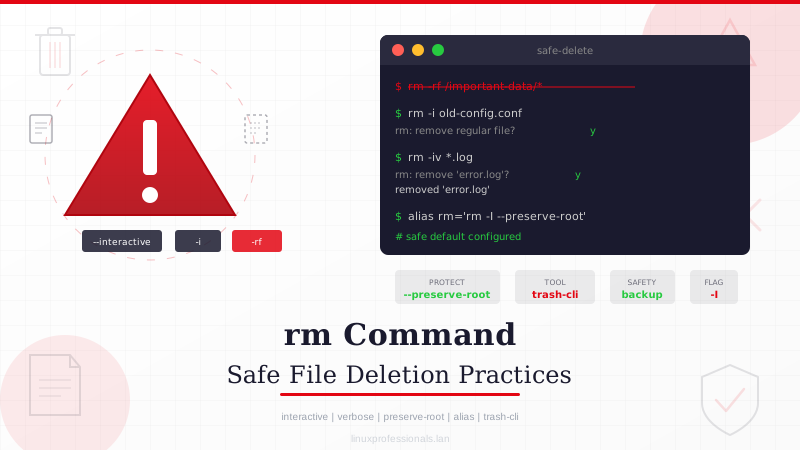
Every Linux administrator has a horror story about rm. It might be their own or someone else's, but the lesson is always the same: rm does not forgive. There is no recycle bin and no undo button. When you press Enter, the files are gone. If you work on production systems, safe rm habits are worth learning early.
How rm Actually Works
When you run rm file.txt, the kernel does not erase the data on disk. It removes the directory entry (the hard link) pointing to the file's inode. Once the link count on that inode drops to zero and no process holds the file open, the disk blocks are marked as free. The data sits there until something else overwrites those blocks, which is why recovery tools sometimes work and sometimes do not.
This distinction matters. If a process still has the file open, the data persists until that process closes its file descriptor. That quirk has saved more than a few accidental deletions in production.
# Check if a deleted file is still held open by a process
lsof +L1

# The output shows PID and file descriptor — you can copy the data out
cp /proc/<PID>/fd/<FD> /tmp/recovered_file
Syntax and Core Options
# Basic removal
rm file.txt

# Remove multiple files at once
rm report.log data.csv temp.txt

# Remove a directory and everything inside it
rm -r /var/log/old-logs/

# Force removal — skip confirmation prompts and missing-file errors
rm -f nonexistent.txt    # no error even if file doesn't exist

# Combine recursive and force (the infamous pair)
rm -rf /tmp/build-artifacts/

# Interactive mode — ask before each file
rm -i *.log

# Interactive but only when removing more than 3 files or recursively
rm -I *.log

# Verbose — print each file as it's removed
rm -v old-*
Complete Option Reference
| Option | Long Form | Description |
|---|---|---|
-f | --force | Ignore nonexistent files, never prompt |
-i | Prompt before every removal | |
-I | Prompt once before removing more than 3 files or when recursive | |
-r | --recursive | Remove directories and their contents |
-d | --dir | Remove empty directories (like rmdir) |
-v | --verbose | Print each file name as it is removed |
--no-preserve-root | Allow recursive removal of / (never use this) | |
--preserve-root | Refuse to operate recursively on / (default since coreutils 6.4) | |
--one-file-system | Skip directories on different filesystems during recursive removal |
The rm -rf Problem
By itself, rm -rf is a tool. The danger comes from what you feed it. Here are real-world patterns that have caused outages:
# DANGEROUS: Unquoted variable expansion
DIR=""
rm -rf $DIR/    # expands to: rm -rf /

# DANGEROUS: Typo with a space
rm -rf /usr /local/bin    # deletes /usr AND /local/bin (if it exists)
# What you meant:
rm -rf /usr/local/bin

# DANGEROUS: Glob in wrong directory
cd /tmp/build || exit 1    # if cd fails without the exit guard...
rm -rf *                   # ...you just wiped your current directory
Always use set -euo pipefail in scripts. The -u flag catches unset variables before they turn rm -rf $UNSET/ into rm -rf /. The -e flag stops execution on errors so a failed cd does not leave you in the wrong directory.
Safe Deletion Practices
Preview Before You Delete
Get in the habit of looking at what you are about to remove before you remove it. This one practice prevents most accidents.
# Use ls with the same glob pattern first
ls /tmp/*.log
# Then delete
rm /tmp/*.log

# Use echo to test glob expansion
echo /var/cache/apt/archives/*.deb
# Looks right? Then:
rm /var/cache/apt/archives/*.deb

# Use find with -print first, then switch to -delete
find /var/log -name "*.gz" -mtime +90 -print
# Review the list, then:
find /var/log -name "*.gz" -mtime +90 -delete

# Interactive mode for small batches
rm -iv suspicious-files-*
Use find Instead of rm for Bulk Operations
find lets you filter by age, size, type, owner, and permissions before deleting anything. For bulk cleanup, it is almost always better than a bare rm with globs.
# Delete files older than 30 days
find /tmp -type f -mtime +30 -delete

# Delete empty directories
find /var/cache -type d -empty -delete

# Delete files larger than 100MB
find /home -type f -size +100M -delete

# Delete by extension
find . -name "*.pyc" -delete
find . -name "__pycache__" -type d -exec rm -rf {} +

# Delete files not accessed in 60 days, but only regular files
find /tmp -maxdepth 1 -type f -atime +60 -delete

# Delete everything except specific files
find /tmp/build -type f -not -name "*.keep" -delete
The Trash Pattern
If you work on systems where accidental deletion is a real risk, replace direct rm calls with a trash mechanism.
# Install trash-cli (available on most distros)
# RHEL/CentOS/Fedora
dnf install trash-cli

# Debian/Ubuntu
apt install trash-cli

# Usage
trash-put file.txt          # Move to trash instead of deleting
trash-list                  # View trashed items
trash-restore               # Interactively restore files
trash-empty 30              # Permanently delete items older than 30 days
For servers where installing packages is not an option, a shell function works:
# Add to ~/.bashrc
safe_rm() {
    local trash_dir="$HOME/.trash/$(date +%Y%m%d_%H%M%S)"
    mkdir -p "$trash_dir"
    mv -- "$@" "$trash_dir/"
    echo "Moved $# item(s) to $trash_dir"
}
alias rm='safe_rm'

# Override the alias when you actually need real rm
\rm file.txt    # backslash bypasses the alias
command rm file.txt    # alternative bypass
Protecting Files from Accidental Deletion
Immutable Attribute
The chattr command on ext4 and XFS filesystems can make a file undeletable, even by root.
# Make a file immutable
chattr +i /etc/resolv.conf

# Try to delete it — this will fail
rm /etc/resolv.conf
# rm: cannot remove '/etc/resolv.conf': Operation not permitted

# Check immutable flag
lsattr /etc/resolv.conf
# ----i----------- /etc/resolv.conf

# Remove immutable flag when you need to modify it
chattr -i /etc/resolv.conf
Append-Only Attribute
# File can be appended to but not deleted or overwritten
chattr +a /var/log/audit.log

# This works:
echo "new entry" >> /var/log/audit.log

# These fail:
rm /var/log/audit.log            # Operation not permitted
echo "overwrite" > /var/log/audit.log    # Operation not permitted
Sticky Bit on Directories
# Users can only delete files they own within a sticky-bit directory
chmod +t /shared/workspace/

# Check: the 't' in permissions
ls -ld /shared/workspace/
# drwxrwxrwt 2 root root 4096 Feb 27 12:00 /shared/workspace/

# /tmp already has this set on most systems
ls -ld /tmp
# drwxrwxrwt 15 root root 4096 Feb 27 12:00 /tmp
Dealing with Tricky Filenames
Files with special characters in their names can trip up rm. A few of the worst offenders and how to deal with them:
# Filename starting with a dash
rm -- -weird-file.txt          # double dash signals end of options
rm ./-weird-file.txt           # or use relative path prefix

# Filename with spaces
rm "file with spaces.txt"      # quote the name
rm file\ with\ spaces.txt     # or escape each space

# Filename with special characters
rm $'file\twith\ttabs.txt'    # ANSI-C quoting for tabs
rm $'file\nwith\nnewlines'    # newlines in filename

# Unicode or non-printable characters — use inode number
ls -li                         # note the inode number in column 1
find . -inum 12345678 -delete  # delete by inode

# Bulk rename problem files first
rename 's/[^a-zA-Z0-9._-]/_/g' *    # Perl rename: sanitize filenames
Recovery After Accidental Deletion
If you have already run rm on something important, stop writing to the filesystem immediately. Every new file or log entry could overwrite the blocks where your data sits.
Check for Open File Descriptors
# If a process still has the file open, the data is intact
lsof +L1 | grep deleted

# Copy from the /proc filesystem
cp /proc/<PID>/fd/<FD> /tmp/recovered_file

# Real example: recover a deleted nginx access log
lsof +L1 | grep nginx | grep access
# nginx 1234 www 5w REG 253,1 84729 0 /var/log/nginx/access.log (deleted)
cp /proc/1234/fd/5 /tmp/access.log.recovered
Filesystem-Level Recovery Tools
# ext3/ext4: extundelete
dnf install extundelete    # or apt install extundelete
umount /dev/sda2           # unmount first if possible
extundelete /dev/sda2 --restore-all
# Recovered files appear in RECOVERED_FILES/

# Any filesystem: testdisk + photorec
dnf install testdisk
testdisk /dev/sda          # interactive partition/file recovery
photorec /dev/sda2         # file-type-based recovery (carving)

# XFS: xfs_undelete (third-party)
# Note: XFS recovery is significantly harder than ext4
Recovery is never guaranteed. The only reliable protection against rm is having backups. Whether you use rsync, restic, or LVM/ZFS/Btrfs snapshots, something should be running before you need it.
rm in Scripts: Defensive Patterns
Scripts amplify mistakes. A manual rm deletes once; a script running across 200 servers deletes 200 times. The patterns below catch the most common scripting blunders before they reach production.
#!/bin/bash
set -euo pipefail

# Pattern 1: Validate variables before using them with rm
WORK_DIR="${BUILD_OUTPUT:?ERROR: BUILD_OUTPUT is not set}"
rm -rf "${WORK_DIR:?}/artifacts"    # :? prevents empty expansion

# Pattern 2: Never delete above your working directory
cleanup() {
    local target="$1"
    # Ensure target is under the expected base path
    case "$target" in
        /tmp/myapp/*) rm -rf "$target" ;;
        *) echo "REFUSING to delete: $target is outside /tmp/myapp/" >&2; return 1 ;;
    esac
}

# Pattern 3: Use --one-file-system to prevent crossing mount points
rm -rf --one-file-system /var/lib/myapp/cache/

# Pattern 4: Log what you delete
rm -rfv /tmp/build-* 2>&1 | tee -a /var/log/cleanup.log

# Pattern 5: Dry-run first, delete second
echo "Files that would be deleted:"
find /tmp -name "*.tmp" -mtime +7 -print
read -p "Proceed with deletion? [y/N] " confirm
[[ "$confirm" == "y" ]] && find /tmp -name "*.tmp" -mtime +7 -delete
Quick Reference - Cheats
| Task | Command |
|---|---|
| Delete a single file | rm file.txt |
| Delete a directory tree | rm -r directory/ |
| Delete with confirmation | rm -i file.txt |
| Delete files by age | find /path -mtime +30 -delete |
| Delete empty dirs | find /path -type d -empty -delete |
| Delete files by extension | find . -name "*.pyc" -delete |
| Delete all except pattern | find . -not -name "*.keep" -delete |
| Delete file with leading dash | rm -- -filename |
| Delete by inode number | find . -inum 12345 -delete |
| Make file undeletable | chattr +i file |
| Move to trash instead | trash-put file.txt |
| Recover deleted file (open fd) | cp /proc/PID/fd/FD recovered |
Summary
The rm command does exactly what you tell it to, instantly and permanently. Preview before you delete. Use set -euo pipefail in every script. And keep backups running, because sooner or later a deletion will go wrong and you will want a way back. A dry run takes five seconds. Recovering from a bad rm -rf without backups can take the rest of your day, if recovery is even possible.