File and Directory Management
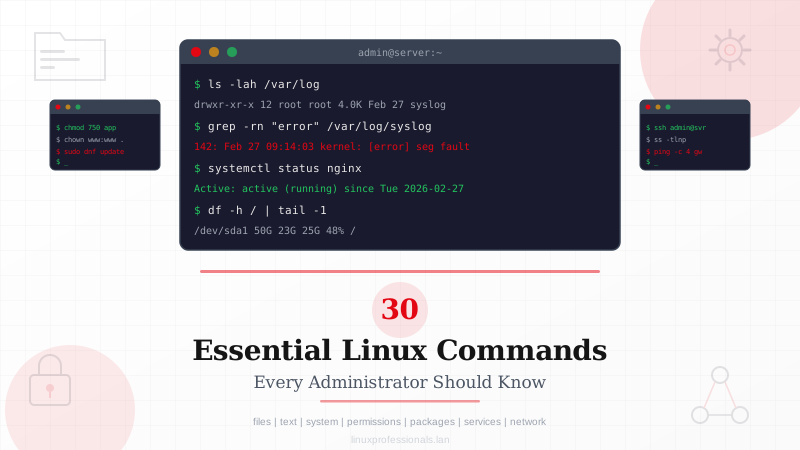
These commands form the foundation of daily work on a Linux system. Whether you are organizing config files, deploying an application, or cleaning up old logs, you will reach for these tools constantly.
ls — List directory contents
The ls command shows what is inside a directory. On its own, it prints file names. With flags, it reveals permissions, ownership, size, and modification times.
# Long listing with human-readable sizes, including hidden files
ls -lah /var/log

# Sort by modification time, newest first
ls -lt /etc/*.conf

# Show only directories in the current path
ls -d */
The -l flag switches to long format. The -a flag includes hidden files (those starting with a dot). The -h flag converts byte counts to KB, MB, and GB. Combine -t with -r to reverse the sort order and put the oldest files first.
cd — Change directory
You move between directories with cd. It accepts absolute paths, relative paths, and a handful of shortcuts.
# Jump to an absolute path
cd /etc/nginx/conf.d

# Go back to the previous directory
cd -

# Move up two levels from the current location
cd ../..
Running cd with no arguments sends you to your home directory. The cd - shortcut is especially useful when you are switching between two directories repeatedly.
cp — Copy files and directories
The cp command duplicates files or entire directory trees. Always use -r for directories, or the command will refuse to copy them.
# Copy a single file, preserving permissions and timestamps
cp -p /etc/nginx/nginx.conf /etc/nginx/nginx.conf.bak

# Recursively copy a directory tree
cp -r /var/www/html /var/www/html_backup

# Copy multiple files into a target directory
cp server.conf vhost.conf ssl.conf /etc/nginx/conf.d/
The -p flag preserves ownership, permissions, and timestamps. Use -i to get a confirmation prompt before overwriting existing files, which can save you from accidental data loss on production systems.
mv — Move or rename files
The mv command both renames and relocates files. There is no separate rename command in Linux; mv handles both operations.
# Rename a file in place
mv report_draft.txt report_final.txt

# Move a file to another directory
mv /tmp/deploy.tar.gz /opt/releases/

# Move all .log files to an archive directory, prompt before overwrite
mv -i /var/log/app/*.log /var/log/archive/
The -i flag asks for confirmation before overwriting. The -n flag prevents overwriting entirely. For bulk renames with pattern matching, pair mv with a for loop or use the rename utility.
rm — Remove files and directories
The rm command deletes files permanently. There is no trash can on the command line, so deleted files are gone unless you have backups.
# Remove a single file
rm /tmp/old_download.tar.gz

# Remove a directory and everything inside it
rm -rf /var/cache/apt/archives/

# Remove files interactively, confirming each one
rm -i *.tmp
The -r flag enables recursive deletion for directories. The -f flag suppresses confirmation prompts. Combining -rf is powerful but dangerous. Double-check your path before pressing Enter, especially as root. A misplaced space in rm -rf / tmp versus rm -rf /tmp is the difference between a running system and a rebuild.
mkdir — Create directories
Use mkdir to create one or more directories. The -p flag is the one you will use most often because it creates parent directories as needed and does not complain if the directory already exists.
# Create a nested directory structure in one shot
mkdir -p /opt/myapp/{bin,conf,logs,data}

# Create a directory with specific permissions
mkdir -m 750 /var/lib/myapp
The brace expansion {bin,conf,logs,data} is a Bash feature, not part of mkdir itself. The shell expands it before mkdir sees it. The -m flag sets permissions at creation time, avoiding the need for a separate chmod call.
find — Search for files by criteria
The find command walks a directory tree and tests each file against your criteria. It is slower than locate but always returns real-time results.
# Find all .conf files modified in the last 7 days
find /etc -name "*.conf" -mtime -7

# Find files larger than 100MB in /var
find /var -type f -size +100M

# Find and delete all .tmp files (with confirmation)
find /tmp -name "*.tmp" -type f -ok rm {} \;
The -name flag matches file names (case-sensitive; use -iname for case-insensitive). The -type f restricts results to regular files, while -type d matches directories. The -exec flag runs a command on each match, and -ok does the same but asks for confirmation first. For better performance on large result sets, use -exec ... + instead of -exec ... \; to batch the command invocations.
locate — Find files using a pre-built index
The locate command searches a database that updatedb builds, usually via a daily cron job. It returns results almost instantly, even on large filesystems.
# Find all files with "nginx" in the path
locate nginx.conf

# Update the database manually (run as root)
sudo updatedb

# Case-insensitive search
locate -i readme
Because locate uses a cached database, newly created files will not appear until you run updatedb. Use find when you need real-time results and locate when speed matters more than freshness.
Text Processing
Linux treats almost everything as text: config files, log files, CSV exports, command output. These tools let you inspect, filter, transform, and count text data without opening an editor.
cat — Display file contents
The cat command reads one or more files and writes them to standard output. Despite the name (short for "concatenate"), most people use it to quickly view small files.
# View a config file
cat /etc/hostname

# Concatenate two files into a new one
cat header.html body.html > page.html

# Show line numbers
cat -n /etc/passwd
For large files, cat dumps everything at once with no way to scroll back. Use less for interactive paging. The -n flag adds line numbers, which is handy for referencing specific lines during troubleshooting.
grep — Search text with patterns
The grep command filters text lines that match a pattern. It works on files and piped input. You will use this command more than almost any other.
# Search for "error" in syslog, case-insensitive
grep -i "error" /var/log/syslog

# Show matching lines plus 3 lines of context after each match
grep -A 3 "Failed password" /var/log/auth.log

# Recursively search all .php files for a function name
grep -rn "getDbConnection" /var/www/html --include="*.php"
The -i flag ignores case. The -r flag recurses into directories. The -n flag shows line numbers. The -v flag inverts the match, showing lines that do not contain the pattern. The -c flag prints only a count of matching lines. For complex patterns, use -E (extended regex) or -P (Perl-compatible regex).
sed — Stream editor for text transformation
The sed command reads input line by line, applies editing rules, and writes the result. Its most common use is find-and-replace.
# Replace first occurrence of "old" with "new" on each line
sed 's/old/new/' input.txt

# Replace all occurrences globally and edit the file in place
sed -i 's/http:/https:/g' /etc/nginx/conf.d/site.conf

# Delete all blank lines from a file
sed '/^$/d' config.txt
The s command performs substitution. The g flag at the end makes it global (all occurrences per line rather than just the first). The -i flag edits the file in place. On macOS, sed -i requires an empty string argument (sed -i ''), but on Linux it works without one. Always test your sed command without -i first to preview the output.
awk — Pattern scanning and text processing
The awk command splits each input line into fields and lets you manipulate them. It is a small programming language designed for columnar data.
# Print the first and third columns from a space-delimited file
awk '{print $1, $3}' /var/log/access.log

# Sum the values in column 5
awk '{sum += $5} END {print "Total:", sum}' data.csv

# Print lines where the third field exceeds 1000
awk '$3 > 1000 {print $0}' report.txt
By default, awk splits on whitespace. Use -F to change the delimiter: awk -F: '{print $1}' /etc/passwd splits on colons. The $0 variable holds the entire line, $1 the first field, $2 the second, and so on. NR is the current line number and NF is the number of fields on the current line.
head and tail — View the start or end of a file
The head command shows the first N lines of a file. The tail command shows the last N. Together, they let you peek at files without loading them entirely.
# First 20 lines of a log file
head -n 20 /var/log/nginx/access.log

# Last 50 lines
tail -n 50 /var/log/nginx/error.log

# Follow a log file in real time (new lines appear as they are written)
tail -f /var/log/syslog
The tail -f flag is indispensable for monitoring logs while you reproduce a problem. Press Ctrl+C to stop following. For watching multiple files at once, use tail -f file1 file2 and the output will include headers showing which file each line came from.
sort — Order lines of text
The sort command arranges input lines in order. It handles alphabetic, numeric, and field-based sorting.
# Sort a file alphabetically
sort names.txt

# Numeric sort on the second column (tab-delimited)
sort -t$'\t' -k2 -n scores.tsv

# Sort and remove duplicate lines
sort -u /tmp/ip_list.txt
The -n flag sorts numerically instead of alphabetically (so 10 comes after 9 rather than after 1). The -k flag specifies which field to sort on. The -r flag reverses the order. The -u flag removes duplicates, which is faster than piping to uniq when you just need unique lines.
wc — Count lines, words, and bytes
The wc command counts lines, words, and bytes in its input. It is a quick way to measure file size or check how many entries a list contains.
# Count lines in a log file
wc -l /var/log/auth.log

# Count the number of running processes
ps aux | wc -l

# Word count for a document
wc -w report.txt
The -l flag counts lines, -w counts words, and -c counts bytes. Without any flags, wc prints all three. Piping command output to wc -l is a standard idiom for counting results.
System Information
When you log into a system, your first questions are usually: what OS is this, how much disk space is left, and is anything using too much memory or CPU? These commands answer those questions.
uname — Print system information
The uname command prints kernel and system details. The -a flag dumps everything it knows.
# Show all system info
uname -a
# Output: Linux web01 5.14.0-362.el9.x86_64 #1 SMP ... x86_64 GNU/Linux

# Just the kernel release version
uname -r
# Output: 5.14.0-362.el9.x86_64

# Just the hostname
uname -n
The -r flag gives you the kernel version, which matters when you are checking driver compatibility or kernel module requirements. The -m flag shows the architecture (x86_64, aarch64, etc.).
df — Report filesystem disk space
The df command shows how much space each mounted filesystem has used and how much remains. If a server suddenly cannot write files, df is the first thing to check.
# Human-readable overview of all filesystems
df -h

# Show only the filesystem containing /var
df -h /var

# Display filesystem type alongside the space info
df -hT
The -h flag shows sizes in human-readable format (GB, MB). The -T flag includes the filesystem type (ext4, xfs, tmpfs). Watch for the "Use%" column. Once a filesystem hits 100%, applications will start failing with "No space left on device" errors.
du — Estimate file and directory space usage
While df shows overall filesystem usage, du tells you which directories and files are eating the space.
# Show the total size of /var/log
du -sh /var/log

# Top 10 largest directories under /
du -h --max-depth=1 / 2>/dev/null | sort -rh | head -10

# Size of each subdirectory in /home
du -h --max-depth=1 /home
The -s flag prints only the summary total. The -h flag makes sizes readable. The --max-depth flag controls how many directory levels deep the report goes. The second example redirects stderr to /dev/null because du will print permission-denied errors for directories you cannot read, and those errors clutter the output.
free — Display memory usage
The free command shows total, used, and available RAM plus swap space.
# Memory in human-readable format
free -h
#               total        used        free      shared  buff/cache   available
# Mem:          7.7Gi       3.2Gi       512Mi       256Mi       4.0Gi       4.1Gi
# Swap:         2.0Gi       128Mi       1.9Gi

# Just megabytes, updated every 5 seconds
free -m -s 5
Focus on the "available" column rather than "free." Linux uses spare RAM for disk caching (the "buff/cache" column), so "free" RAM often looks low even when plenty of memory is available for applications. The -s flag repeats the output at the specified interval, which is useful for watching memory consumption during load testing.
top — Real-time process monitor
The top command shows a live, updating view of system resource usage sorted by CPU consumption.
# Launch the interactive process viewer
top

# Show only processes for a specific user
top -u www-data

# Run once in batch mode (useful for scripts)
top -bn1 | head -20
Inside the interactive view, press M to sort by memory usage, P to sort by CPU, k to kill a process by PID, and q to quit. The -b flag runs in batch mode (no interactive display), and -n1 tells it to run for one iteration. For a more user-friendly alternative, try htop, which supports mouse interaction and color-coded output.
ps — Report a snapshot of current processes
Unlike top, which shows a live feed, ps takes a single snapshot of running processes. It is better suited for scripting and piping into grep.
# Show all processes with full details
ps aux

# Find a specific process
ps aux | grep nginx

# Show processes in a tree structure
ps axjf
The a flag selects all processes with a terminal. The u flag displays the user who owns each process. The x flag includes processes not attached to a terminal (daemons). The --forest or -f flag shows parent-child relationships, which helps you understand which process spawned what.
uptime — Show how long the system has been running
The uptime command gives you a one-line summary: current time, how long the system has been up, how many users are logged in, and load averages.
uptime
# 14:23:07 up 43 days, 5:12,  2 users,  load average: 0.42, 0.38, 0.35
The three load average numbers represent 1-minute, 5-minute, and 15-minute averages. On a single-core system, a load of 1.0 means the CPU is fully utilized. On a 4-core system, a load of 4.0 means full utilization. Consistently high load averages suggest the system needs more CPU power or that some process is misbehaving.
User and Permission Management
Linux is a multi-user operating system. Managing who can access the system and what they can do with files is a core part of administration.
useradd — Create a new user account
The useradd command creates user accounts. On RHEL/CentOS systems, it does not create a home directory by default unless you pass -m.
# Create a user with a home directory and default shell
sudo useradd -m -s /bin/bash jdoe

# Create a system account for running a service (no home, no login)
sudo useradd -r -s /usr/sbin/nologin myapp

# Create a user and assign them to a supplementary group
sudo useradd -m -G wheel,developers jdoe
The -m flag creates the home directory. The -s flag sets the default shell. The -G flag adds the user to supplementary groups (comma-separated, no spaces). On Debian/Ubuntu, the adduser command is a friendlier wrapper around useradd that prompts for the password and other details interactively.
passwd — Change a user's password
The passwd command sets or changes passwords. Regular users can change their own password. Root can change anyone's.
# Change your own password (prompts for current, then new)
passwd

# Set the password for another user (as root)
sudo passwd jdoe

# Lock a user account (disable password login)
sudo passwd -l jdoe

# Force a user to change their password on next login
sudo passwd -e jdoe
The -l flag locks the account by prefixing the password hash with an exclamation mark, preventing password authentication. The -e flag expires the password immediately, forcing the user to choose a new one at their next login. Use -u to unlock a previously locked account.
chmod — Change file permissions
The chmod command modifies read, write, and execute permissions on files and directories. You can use symbolic or numeric (octal) notation.
# Give the owner read/write/execute, group read/execute, others nothing
chmod 750 /opt/myapp/start.sh

# Add execute permission for the owner
chmod u+x deploy.sh

# Recursively set directory permissions
chmod -R 755 /var/www/html
In octal notation, 7 = read+write+execute, 5 = read+execute, 4 = read only, 0 = no permissions. The three digits represent owner, group, and others. In symbolic notation, u is user/owner, g is group, o is others, and a is all. The + adds a permission, - removes it, and = sets it exactly.
chown — Change file ownership
The chown command changes who owns a file and which group it belongs to. You almost always need sudo for this.
# Change owner and group
sudo chown www-data:www-data /var/www/html/index.php

# Recursively change ownership for a directory tree
sudo chown -R deploy:deploy /opt/releases/

# Change only the group
sudo chown :developers /shared/project/
The syntax is chown owner:group file. The -R flag operates recursively. When deploying web applications, incorrect file ownership is one of the most common causes of permission errors. Make sure the web server user (often www-data, nginx, or www) owns the files it needs to serve.
su — Switch user
The su command lets you switch to another user account within your current session.
# Switch to root (prompts for root password)
su -

# Switch to another user
su - jdoe

# Run a single command as another user
su -c "whoami" jdoe
The - (dash) after su starts a login shell, which loads the target user's environment variables and profile scripts. Without it, you inherit the current environment but change only the effective user. Use su -c "command" to run a single command as another user without starting an interactive shell.
sudo — Execute a command as another user
The sudo command runs a single command with elevated privileges. Unlike su, it does not require the root password. Instead, users authenticate with their own password, and access is controlled through /etc/sudoers.
# Run a command as root
sudo systemctl restart nginx

# Edit the sudoers file safely
sudo visudo

# Run a command as a different user
sudo -u postgres psql
The -u flag specifies the target user. If omitted, the command runs as root. The visudo command opens the sudoers file in a safe way, checking syntax before saving. Never edit /etc/sudoers directly with a text editor, as a syntax error can lock everyone out of sudo access.
Package Management
Installing, updating, and removing software varies between distributions, but the concepts are the same. The package manager tracks dependencies and ensures software is installed cleanly.
yum / dnf — Package management for RHEL-based systems
On RHEL 8+, AlmaLinux, Rocky Linux, and Fedora, dnf is the default package manager. It replaced yum, though yum still works as a symlink to dnf on most of these systems.
# Install a package
sudo dnf install nginx

# Search for available packages
dnf search "web server"

# Update all installed packages
sudo dnf update

# Remove a package
sudo dnf remove httpd

# List installed packages
dnf list installed | grep php
The dnf info command shows details about a package (version, size, description) before you install it. Use dnf provides /usr/bin/dig to find which package provides a specific file or command. The --enablerepo and --disablerepo flags let you temporarily toggle repositories for a single transaction.
rpm — Low-level RPM package tool
While dnf handles dependencies automatically, rpm works directly with individual .rpm files. It is useful for querying installed packages and inspecting RPM files before installation.
# Query all installed packages, filter for ssh
rpm -qa | grep ssh

# Show information about an installed package
rpm -qi openssh-server

# List all files installed by a package
rpm -ql nginx

# Install a local .rpm file
sudo rpm -ivh package-1.2.3.x86_64.rpm
The -q flag queries the package database. The -a flag selects all installed packages. The -i flag shows information. The -l flag lists files. For installation, -i installs, -v enables verbose output, and -h shows a progress bar. Prefer dnf for installation whenever possible because it resolves dependencies automatically.
apt — Package management for Debian-based systems
On Debian, Ubuntu, and their derivatives, apt is the standard package manager.
# Update the local package index
sudo apt update

# Install a package
sudo apt install nginx

# Upgrade all installed packages
sudo apt upgrade

# Remove a package and its config files
sudo apt purge apache2

# Search for a package
apt search "text editor"
Always run apt update before apt install. Without updating the index first, apt may try to download versions that no longer exist on the mirror. The purge command removes configuration files along with the package, while remove leaves config files behind.
Service and Process Control
Modern Linux systems use systemd to manage services. These commands control what is running, what starts at boot, and what happens when a process goes wrong.
systemctl — Control the systemd service manager
The systemctl command is the primary tool for managing services on systemd-based systems, which includes nearly every major distribution released since 2015.
# Start, stop, and restart a service
sudo systemctl start nginx
sudo systemctl stop nginx
sudo systemctl restart nginx

# Enable a service to start at boot
sudo systemctl enable nginx

# Check whether a service is running
systemctl status nginx

# List all failed units
systemctl --failed
The enable subcommand creates a symlink so the service starts automatically at boot. The start subcommand starts it right now. You often want both: sudo systemctl enable --now nginx. The status subcommand shows whether the service is active, when it started, its PID, and the last few log lines.
kill — Send signals to processes
The kill command sends a signal to a process, identified by its PID. Despite the name, it does not always terminate processes. Different signals trigger different behaviors.
# Gracefully terminate a process (SIGTERM, the default)
kill 12345

# Force kill a process that will not stop (SIGKILL)
kill -9 12345

# Reload configuration without restarting (SIGHUP)
kill -HUP $(cat /var/run/nginx.pid)

# Kill all processes by name
killall python3
Signal 15 (SIGTERM) asks a process to shut down gracefully. Signal 9 (SIGKILL) forces immediate termination, bypassing cleanup handlers. Signal 1 (SIGHUP) is traditionally used to tell a daemon to re-read its config file. Always try SIGTERM first. Only use SIGKILL if the process refuses to stop after several seconds.
journalctl — Query the systemd journal
The journalctl command reads logs from the systemd journal, which collects output from all services and the kernel.
# View logs for a specific service
journalctl -u nginx

# Show logs from the current boot only
journalctl -b

# Follow new log entries in real time
journalctl -f -u sshd

# Show logs from the last hour
journalctl --since "1 hour ago"

# Show kernel messages
journalctl -k
The -u flag filters by systemd unit (service name). The -f flag follows new entries like tail -f. The --since and --until flags accept timestamps or relative expressions like "1 hour ago" or "yesterday." The -p flag filters by priority level (e.g., -p err shows only errors and above).
Network Commands
Networking problems are some of the most common issues administrators deal with. These tools help you check connectivity, examine open ports, transfer files, and connect to remote systems.
ip — Show and configure network interfaces
The ip command replaced the older ifconfig and is the standard tool for network interface configuration on modern Linux systems.
# Show all interfaces with their IP addresses
ip addr show

# Display the routing table
ip route show

# Bring an interface up or down
sudo ip link set eth0 up
sudo ip link set eth0 down

# Add a temporary IP address to an interface
sudo ip addr add 192.168.1.100/24 dev eth0
The ip addr show (or ip a for short) lists all interfaces, their state, and assigned addresses. The ip route (or ip r) shows the routing table, including the default gateway. Changes made with ip are temporary and do not survive a reboot. For persistent configuration, use NetworkManager or edit the appropriate files in /etc/NetworkManager/ or /etc/sysconfig/network-scripts/.
ss — Socket statistics
The ss command displays information about network sockets. It replaced netstat and is faster, especially on systems with many connections.
# List all listening TCP ports with process names
ss -tlnp

# Show established connections
ss -tn state established

# Show all listening UDP ports
ss -ulnp

# Filter by port number
ss -tlnp | grep :443
The -t flag shows TCP sockets, -u shows UDP, -l shows only listening sockets, -n shows numeric port numbers (skipping DNS lookups), and -p shows the process using each socket. When checking whether a service is listening, ss -tlnp is the go-to command.
ping — Test network connectivity
The ping command sends ICMP echo requests to a host and reports whether it responds. It is the simplest way to check whether a remote machine is reachable.
# Ping a host (Ctrl+C to stop)
ping 8.8.8.8

# Send exactly 4 packets and stop
ping -c 4 google.com

# Set a 2-second timeout per packet
ping -W 2 -c 3 192.168.1.1
On Linux, ping runs continuously until you stop it. Use -c to limit the number of packets. The round-trip time shown in the output tells you about network latency. High values or "packet loss" indicates network problems between you and the target. Note that some hosts block ICMP, so a non-responding ping does not always mean the host is down.
curl — Transfer data with URLs
The curl command transfers data to or from a server using many protocols. It is the Swiss Army knife for HTTP requests, API testing, and downloading files.
# Download a file
curl -O https://example.com/archive.tar.gz

# Make a GET request and show only the HTTP headers
curl -I https://example.com

# Send a POST request with JSON data
curl -X POST -H "Content-Type: application/json" \
     -d '{"name":"test"}' https://api.example.com/items

# Follow redirects and save output to a file
curl -L -o output.html https://example.com/page
The -O flag saves the file using the remote filename. The -o flag lets you specify a local filename. The -I flag fetches headers only. The -L flag follows redirects (important, since many URLs return 301 or 302). The -v flag shows the full request and response headers, which is invaluable for debugging API calls.
wget — Download files from the web
The wget command downloads files from the web. Compared to curl, it is simpler for straightforward downloads and has built-in support for resuming interrupted transfers and mirroring entire websites.
# Download a file
wget https://example.com/release-2.0.tar.gz

# Resume a partially downloaded file
wget -c https://example.com/large-file.iso

# Download a file to a specific location with a custom name
wget -O /tmp/latest.tar.gz https://example.com/release.tar.gz
The -c flag resumes an interrupted download, which is useful for large files over unreliable connections. The -q flag runs quietly without progress output. The -b flag runs the download in the background. For automated scripts, wget is often simpler than curl because its defaults are oriented toward file downloading.
ssh — Secure shell remote login
The ssh command opens an encrypted connection to a remote machine. It is the standard way to manage Linux servers.
# Connect to a remote host
ssh admin@192.168.1.50

# Connect on a non-standard port
ssh -p 2222 admin@server.example.com

# Run a single command remotely without opening an interactive shell
ssh admin@server.example.com "df -h && free -m"

# Use a specific private key file
ssh -i ~/.ssh/deploy_key admin@server.example.com
The -p flag changes the port (default is 22). The -i flag specifies a private key. To avoid typing passwords, set up SSH key-based authentication: generate a keypair with ssh-keygen and copy the public key to the server with ssh-copy-id admin@server. For repeated connections, define host aliases in ~/.ssh/config to save yourself from typing full hostnames and options every time.
scp — Secure copy over SSH
The scp command copies files between machines over an encrypted SSH connection.
# Copy a local file to a remote server
scp backup.tar.gz admin@192.168.1.50:/opt/backups/

# Copy a remote file to the local machine
scp admin@server:/var/log/app.log ./app.log

# Recursively copy a directory
scp -r /opt/configs admin@server:/opt/configs

# Use a non-standard SSH port
scp -P 2222 data.csv admin@server:/tmp/
Note that scp uses -P (uppercase) for the port, while ssh uses -p (lowercase). For transferring large numbers of files or synchronizing directories, rsync over SSH is more efficient because it only transfers the differences. However, scp is quick and available on every system with SSH.
Wrapping Up
These 30 commands will not cover every situation you face as an administrator. But they handle a large portion of the daily work: navigating filesystems, reading logs, managing users, controlling services, checking system health, and connecting to remote machines. The next step is to start combining them. Pipe grep into awk, feed find results into xargs, chain ssh with remote commands. Each command is a building block, and the real power shows up when you stack them together.