Cockpit is the web-based server management console that Red Hat ships with every RHEL installation. Unlike heavyweight panels like Webmin or cPanel, Cockpit reads directly from the system — it does not maintain its own configuration database. When you change a network setting in Cockpit, it runs nmcli underneath. When you manage a service, it calls systemctl. This means Cockpit and the terminal always agree on system state, and anything you do in Cockpit you can reproduce on the command line.
Installation Across Distributions
# RHEL 9 / Rocky / Alma — Cockpit is already installed, just enable it
sudo systemctl enable --now cockpit.socket

# Install additional modules
sudo dnf install -y \
    cockpit-storaged \
    cockpit-networkmanager \
    cockpit-packagekit \
    cockpit-podman \
    cockpit-machines \
    cockpit-selinux \
    cockpit-sosreport \
    cockpit-pcp

# Debian 12
sudo apt install -y cockpit cockpit-podman cockpit-machines cockpit-storaged

# Ubuntu 24.04
sudo apt install -y cockpit cockpit-podman cockpit-machines

# Open the firewall
sudo firewall-cmd --permanent --add-service=cockpit
sudo firewall-cmd --reload

# Access at https://your-server:9090
The Module Architecture You Need to Know
Cockpit is modular — each panel section is a separate RPM/DEB package. Here is what each module provides:
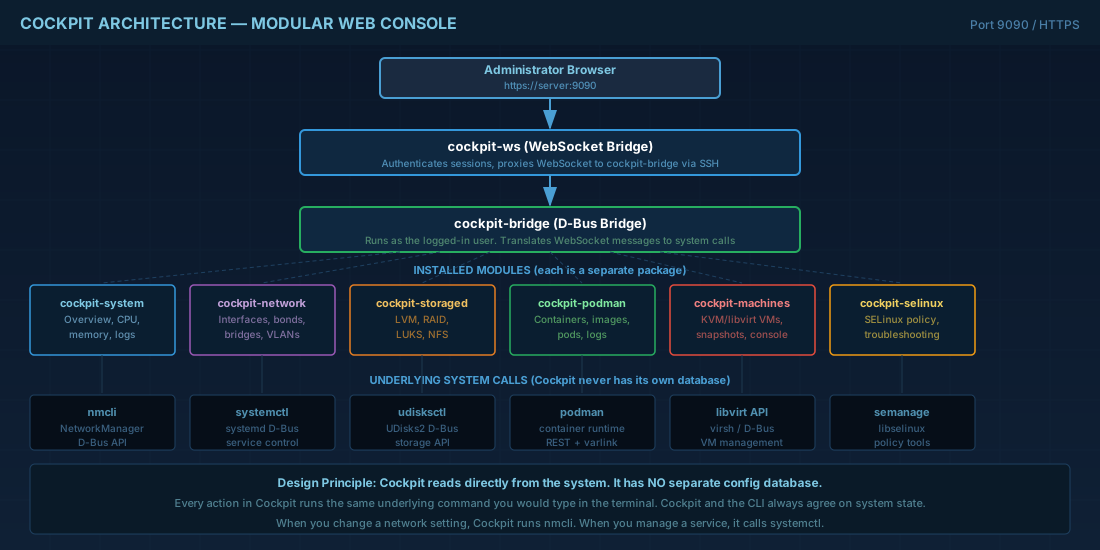
cockpit-system— System overview, hardware info, performance graphs, hostname, timecockpit-networkmanager— Network interface configuration, bonds, bridges, VLANscockpit-storaged— Disk management, LVM, RAID, LUKS encryption, NFS mountscockpit-podman— Container management (pull, run, stop, logs, inspect)cockpit-machines— KVM/libvirt virtual machine managementcockpit-packagekit— Software updates and package managementcockpit-selinux— SELinux troubleshooting and policy managementcockpit-pcp— Performance Co-Pilot metrics (detailed historical performance data)cockpit-sosreport— Generate diagnostic reports for Red Hat support
Multi-Server Dashboard
Cockpit's most underappreciated feature: you can manage multiple servers from a single browser tab. The primary server acts as a bastion, and SSH connections fan out to managed hosts.
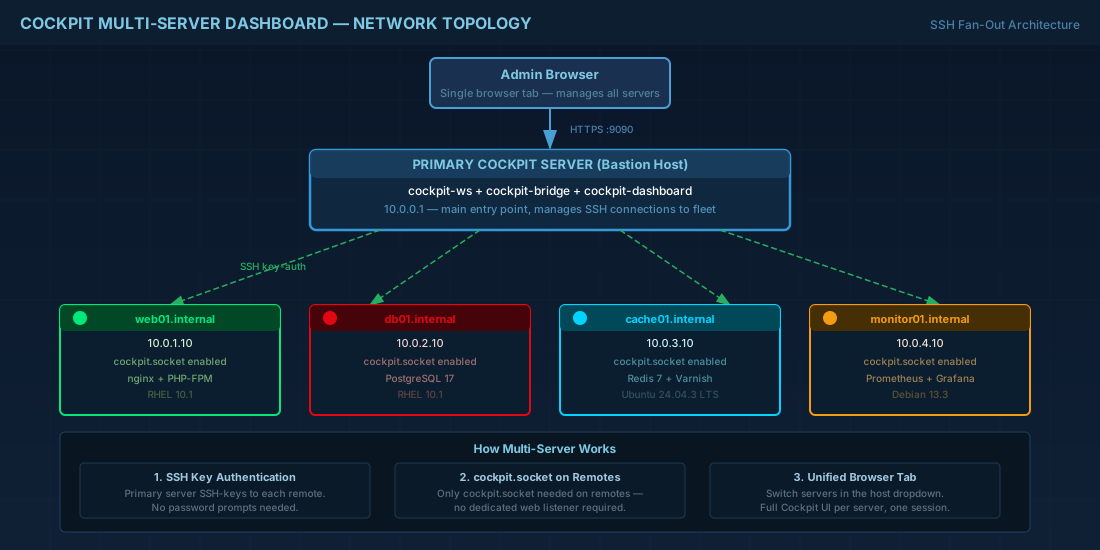
# On the primary Cockpit server (the one you browse to)
sudo dnf install -y cockpit-dashboard

# On remote servers — just enable cockpit.socket
sudo systemctl enable --now cockpit.socket

# Configure SSH key-based access from primary to remote servers
ssh-copy-id engineer@remote-server-01
ssh-copy-id engineer@remote-server-02

# In the Cockpit web UI:
# 1. Click the host dropdown (top-left)
# 2. Click "Add new host"
# 3. Enter hostname/IP and credentials
# 4. The remote server appears in the sidebar

# For automated setup, edit the known hosts file
cat >> /etc/cockpit/machines.d/99-fleet.json << 'EOF'
{
    "web01.internal": {
        "address": "10.0.1.10",
        "visible": true,
        "color": "#00E87B"
    },
    "db01.internal": {
        "address": "10.0.2.10",
        "visible": true,
        "color": "#E30613"
    },
    "cache01.internal": {
        "address": "10.0.3.10",
        "visible": true,
        "color": "#00D4FF"
    }
}
EOF

# Restart cockpit to pick up changes
sudo systemctl restart cockpit
Container Management with Cockpit-Podman
The Podman module provides a full GUI for container management — pulling images, running containers, viewing logs, inspecting networks, and managing pods.
# Install the module
sudo dnf install -y cockpit-podman

# In the web UI, navigate to "Podman containers"
# You can:
# - Pull images from registries
# - Create and start containers with port mappings, volumes, env vars
# - View real-time container logs
# - Inspect running containers (full JSON detail)
# - Manage container networks
# - Create pods (groups of containers sharing a network namespace)

# The module reads from both root and rootless Podman
# If logged in as a non-root user, you see your rootless containers
# If using "Administrative access" (sudo), you see system containers
KVM Virtual Machine Management
# Install virtualization stack + Cockpit module
sudo dnf install -y cockpit-machines libvirt qemu-kvm virt-install
sudo systemctl enable --now libvirtd

# In the web UI, navigate to "Virtual machines"
# Full VM lifecycle management:
# - Create VMs from ISO, cloud images, or PXE
# - Console access (VNC/SPICE in browser — no client needed)
# - Snapshot management
# - CPU/memory hot-plug
# - Network interface management
# - Storage pool management

# CLI equivalent of what Cockpit does:
virt-install --name testvm \
    --ram 2048 --vcpus 2 \
    --disk size=20 \
    --os-variant rocky9.0 \
    --cdrom /var/lib/libvirt/images/Rocky-9.4-x86_64-minimal.iso \
    --graphics vnc,listen=0.0.0.0 \
    --noautoconsole
Storage Management: LVM, RAID, LUKS
# Install storage module
sudo dnf install -y cockpit-storaged

# Cockpit can manage:
# - Physical disks and partitions
# - LVM (create VGs, LVs, extend, snapshot)
# - RAID arrays (mdadm)
# - LUKS encryption (encrypt/decrypt, change passphrase)
# - NFS/Samba mounts
# - Stratis storage pools (RHEL-specific)

# Example: What happens when you create an LVM volume in Cockpit
# Behind the scenes, Cockpit runs:
pvcreate /dev/sdb
vgcreate data_vg /dev/sdb
lvcreate -n data_lv -l 100%FREE data_vg
mkfs.xfs /dev/data_vg/data_lv
mkdir -p /data
mount /dev/data_vg/data_lv /data

# And adds to /etc/fstab:
echo "/dev/data_vg/data_lv /data xfs defaults 0 0" >> /etc/fstab
Custom Branding and Configuration
# Cockpit configuration lives in /etc/cockpit/

# cockpit.conf — Main configuration
cat > /etc/cockpit/cockpit.conf << 'EOF'
[WebService]
# Custom login title
LoginTitle = Production Infrastructure

# Session idle timeout (seconds)
IdleTimeout = 900

# Restrict to specific origins (CORS)
Origins = https://cockpit.company.com

# Require HTTPS
AllowUnencrypted = false

[Session]
# Ban after failed login attempts
Banner = /etc/cockpit/issue

[Log]
# Increase logging for troubleshooting
Fatal = criticals warnings
EOF

# Custom branding
sudo mkdir -p /etc/cockpit/static/branding/custom

# Add a custom logo (shows on login page)
cp company-logo.png /etc/cockpit/static/branding/custom/logo.png

# Custom CSS for the login page
cat > /etc/cockpit/static/branding/custom/branding.css << 'EOF'
#badge {
    display: none;
}
#brand {
    background-image: url("logo.png");
    background-size: contain;
    background-repeat: no-repeat;
    height: 80px;
}
EOF

sudo systemctl restart cockpit
Cockpit with Let's Encrypt SSL
# Cockpit uses self-signed certificates by default
# Replace with Let's Encrypt for production

# Install certbot
sudo dnf install -y certbot

# Obtain certificate
sudo certbot certonly --standalone -d cockpit.company.com --agree-tos --email admin@company.com

# Create combined certificate for Cockpit
cat /etc/letsencrypt/live/cockpit.company.com/fullchain.pem \
    /etc/letsencrypt/live/cockpit.company.com/privkey.pem \
    > /etc/cockpit/ws-certs.d/cockpit.cert

chmod 640 /etc/cockpit/ws-certs.d/cockpit.cert

# Cockpit automatically picks up the certificate — no restart needed
# But restart anyway to be safe
sudo systemctl restart cockpit

# Auto-renewal hook
cat > /etc/letsencrypt/renewal-hooks/post/cockpit.sh << 'HOOK'
#!/bin/bash
cat /etc/letsencrypt/live/cockpit.company.com/fullchain.pem \
    /etc/letsencrypt/live/cockpit.company.com/privkey.pem \
    > /etc/cockpit/ws-certs.d/cockpit.cert
chmod 640 /etc/cockpit/ws-certs.d/cockpit.cert
systemctl restart cockpit
HOOK
chmod +x /etc/letsencrypt/renewal-hooks/post/cockpit.sh
Performance Monitoring with PCP Integration
# Install Performance Co-Pilot + Cockpit integration
sudo dnf install -y cockpit-pcp pcp pcp-system-tools
sudo systemctl enable --now pmcd pmlogger

# This unlocks the "Performance" section in Cockpit with:
# - Historical CPU, memory, disk, network graphs
# - Per-process resource usage
# - Disk I/O breakdown by device
# - Network traffic by interface

# PCP stores historical data — Cockpit can display graphs from the past
# Default retention: 14 days

# Customize retention
cat >> /etc/pcp/pmlogger/control << 'EOF'
# Keep 30 days of performance data
$PCP_LOG_DIR/pmlogger/LOCALHOSTNAME    -r -T30d -c config.default
EOF

sudo systemctl restart pmlogger
Hardening Cockpit for Production
# 1. Restrict access to specific IPs using systemd socket override
sudo mkdir -p /etc/systemd/system/cockpit.socket.d/
cat > /etc/systemd/system/cockpit.socket.d/override.conf << 'EOF'
[Socket]
# Only listen on management network
ListenStream=
ListenStream=10.0.0.1:9090
FreeBind=yes
EOF
sudo systemctl daemon-reload
sudo systemctl restart cockpit.socket

# 2. Limit which users can log in
cat >> /etc/cockpit/cockpit.conf << 'EOF'
[Session]
# Only allow members of the 'wheel' group
AllowGroups = wheel admins
EOF

# 3. Disable root login
cat >> /etc/cockpit/disallowed-users << 'EOF'
root
EOF

# 4. Enable two-factor authentication
# Cockpit respects PAM — configure pam_google_authenticator
sudo dnf install -y google-authenticator
# Run google-authenticator for each user

# Add to /etc/pam.d/cockpit:
# auth required pam_google_authenticator.so

# 5. Rate-limit login attempts (via systemd)
sudo mkdir -p /etc/systemd/system/cockpit.service.d/
cat > /etc/systemd/system/cockpit.service.d/override.conf << 'EOF'
[Service]
# Limit connections
LimitNOFILE=1024
EOF

sudo systemctl daemon-reload
Cockpit API: Scripting and Integration
# Cockpit exposes a REST-like API over its websocket
# You can interact with it using curl and cockpit-cli

# Get system info via the Cockpit API
curl -k -u engineer:password \
    https://localhost:9090/cockpit/manifests.json

# For automation, use cockpit-bridge directly
# It is the process that Cockpit uses to communicate with the system
echo '{"command":"open","channel":"dbus","payload":{"name":"org.freedesktop.hostname1","path":"/org/freedesktop/hostname1"}}' \
    | cockpit-bridge

# Practical use: automate Cockpit module installation across a fleet
for host in web01 web02 db01 cache01; do
    ssh "$host" "dnf install -y cockpit-podman cockpit-storaged && systemctl restart cockpit"
done
Cockpit is not trying to replace the terminal — it is a complementary tool that makes common administrative tasks visual and accessible. For teams with mixed skill levels, it provides a safe GUI for operations that would otherwise require memorizing nmcli, lvextend, or virsh syntax. For senior engineers, it is a quick dashboard that shows system state at a glance without SSH-ing into every machine. Install it everywhere, restrict access properly, and let it handle the repetitive tasks while you focus on architecture.