Quick Start
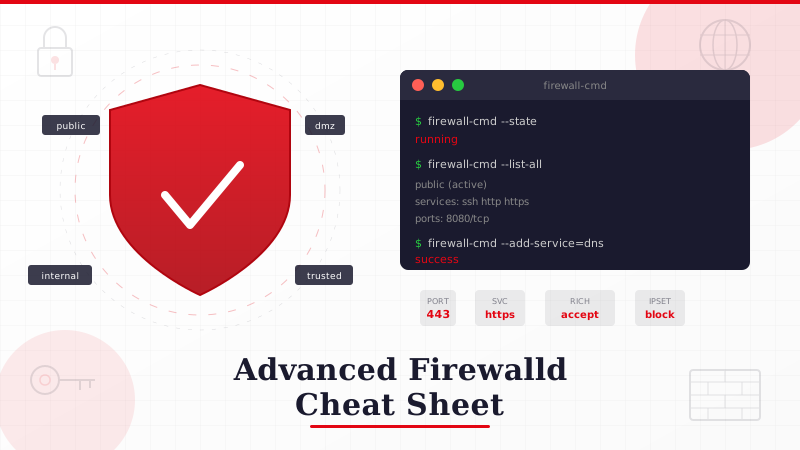
Firewalld is the default firewall management tool on RHEL, CentOS, Fedora, Rocky Linux, and AlmaLinux. It wraps nftables (or iptables on older systems) behind a zone-based model that is easier to reason about than raw packet filter rules. This cheat sheet covers every command you are likely to need, organized by task.
All commands below use firewall-cmd. Most changes require root or sudo. Add --permanent to persist a rule across reboots, then --reload to activate it. Without --permanent, changes are runtime-only and disappear on the next reload or reboot.
# Golden rule: make it permanent, then reload
sudo firewall-cmd --permanent --add-port=8080/tcp
sudo firewall-cmd --reload
Service Status and Control
# Check if firewalld is running
sudo firewall-cmd --state
# output: running

# Start, stop, restart, enable on boot
sudo systemctl start firewalld
sudo systemctl stop firewalld
sudo systemctl restart firewalld
sudo systemctl enable firewalld
sudo systemctl disable firewalld

# Check the systemd status with recent logs
sudo systemctl status firewalld

# See which backend firewalld is using (nftables or iptables)
sudo firewall-cmd --get-log-denied
# To see the actual backend:
cat /etc/firewalld/firewalld.conf | grep FirewallBackend
Zones
Zones are named trust levels. Each network interface is assigned to one zone. Traffic hitting that interface gets the rules defined in its zone. The default installation ships with several predefined zones.
# List all available zones
sudo firewall-cmd --get-zones
# output: block dmz drop external home internal nm-shared public trusted work

# Show the default zone (usually "public")
sudo firewall-cmd --get-default-zone

# Change the default zone
sudo firewall-cmd --set-default-zone=internal

# List all active zones and their assigned interfaces
sudo firewall-cmd --get-active-zones
# output:
# public
#   interfaces: eth0
# internal
#   interfaces: eth1

# Show full configuration of a specific zone
sudo firewall-cmd --zone=public --list-all

# Show full configuration of ALL zones
sudo firewall-cmd --list-all-zones

# Assign an interface to a zone
sudo firewall-cmd --permanent --zone=internal --change-interface=eth1
sudo firewall-cmd --reload

# Create a custom zone
sudo firewall-cmd --permanent --new-zone=webservers
sudo firewall-cmd --reload
sudo firewall-cmd --zone=webservers --list-all

# Delete a custom zone
sudo firewall-cmd --permanent --delete-zone=webservers
sudo firewall-cmd --reload
Predefined Zones Reference
| Zone | Default behavior | Typical use |
|---|---|---|
drop |
Drop all incoming, no ICMP reply | Maximum lockdown |
block |
Reject all incoming with ICMP host-prohibited | Lockdown with rejection notice |
public |
Reject incoming except selected services | Untrusted networks (default) |
external |
Like public, with masquerading enabled | NAT routers, external-facing interfaces |
dmz |
Limited incoming access | DMZ servers with public-facing services |
work |
Trust most computers on the network | Office/corporate networks |
home |
Trust most computers on the network | Home networks |
internal |
Trust most computers on the network | Internal/LAN interfaces |
trusted |
Accept all incoming traffic | Fully trusted networks (VPN tunnels, loopback) |
Services
Services are named collections of port and protocol rules. Using services instead of raw port numbers makes your firewall readable. Firewalld ships with over 100 predefined services.
# List all available service definitions
sudo firewall-cmd --get-services
# output: RH-Satellite-6 amanda-client amanda-k5-client ... znc

# List services currently enabled in the default zone
sudo firewall-cmd --list-services
# output: dhcpv6-client ssh

# Add a service (runtime only)
sudo firewall-cmd --add-service=http

# Add a service permanently
sudo firewall-cmd --permanent --add-service=http
sudo firewall-cmd --reload

# Add multiple services at once
sudo firewall-cmd --permanent --add-service={http,https,dns}
sudo firewall-cmd --reload

# Remove a service
sudo firewall-cmd --permanent --remove-service=http
sudo firewall-cmd --reload

# Add a service to a specific zone
sudo firewall-cmd --permanent --zone=dmz --add-service=http
sudo firewall-cmd --reload

# Check if a specific service is enabled
sudo firewall-cmd --query-service=http
# output: yes/no

# Show the definition of a service (ports, protocols)
sudo firewall-cmd --info-service=http
# output:
# http
#   ports: 80/tcp
#   protocols:
#   source-ports:
#   modules:
Creating Custom Services
# Create a new service definition
sudo firewall-cmd --permanent --new-service=myapp

# Set description and short name
sudo firewall-cmd --permanent --service=myapp --set-description="My custom application"
sudo firewall-cmd --permanent --service=myapp --set-short="MyApp"

# Add ports to the custom service
sudo firewall-cmd --permanent --service=myapp --add-port=3000/tcp
sudo firewall-cmd --permanent --service=myapp --add-port=3001/tcp

# Enable the custom service
sudo firewall-cmd --permanent --add-service=myapp
sudo firewall-cmd --reload

# Or edit the XML file directly (sometimes easier for complex services)
cat /etc/firewalld/services/myapp.xml
Ports
When no predefined service matches what you need, open ports directly.
# Open a single TCP port
sudo firewall-cmd --permanent --add-port=8080/tcp
sudo firewall-cmd --reload

# Open a single UDP port
sudo firewall-cmd --permanent --add-port=5353/udp
sudo firewall-cmd --reload

# Open a range of ports
sudo firewall-cmd --permanent --add-port=5000-5100/tcp
sudo firewall-cmd --reload

# Open multiple ports at once
sudo firewall-cmd --permanent --add-port={8080/tcp,8443/tcp,9090/tcp}
sudo firewall-cmd --reload

# List all open ports in the default zone
sudo firewall-cmd --list-ports

# List ports in a specific zone
sudo firewall-cmd --zone=internal --list-ports

# Remove a port
sudo firewall-cmd --permanent --remove-port=8080/tcp
sudo firewall-cmd --reload

# Check if a specific port is open
sudo firewall-cmd --query-port=8080/tcp
Rich Rules
Rich rules give you fine-grained control that goes beyond simple port/service rules. They let you filter by source address, destination, logging, rate limits, and more. The syntax is verbose but readable.
# Allow SSH only from a specific IP
sudo firewall-cmd --permanent --add-rich-rule='rule family="ipv4" source address="192.168.1.100" service name="ssh" accept'

# Allow a subnet access to port 3306 (MySQL)
sudo firewall-cmd --permanent --add-rich-rule='rule family="ipv4" source address="10.0.0.0/24" port port="3306" protocol="tcp" accept'

# Block all traffic from a specific IP
sudo firewall-cmd --permanent --add-rich-rule='rule family="ipv4" source address="203.0.113.50" drop'

# Reject (with ICMP response) traffic from a subnet
sudo firewall-cmd --permanent --add-rich-rule='rule family="ipv4" source address="198.51.100.0/24" reject'

# Log and accept connections on port 443 (rate-limited logging)
sudo firewall-cmd --permanent --add-rich-rule='rule family="ipv4" port port="443" protocol="tcp" log prefix="HTTPS: " level="info" limit value="5/m" accept'

# Allow a specific IP to access a port range
sudo firewall-cmd --permanent --add-rich-rule='rule family="ipv4" source address="10.0.0.5" port port="5000-5100" protocol="tcp" accept'

# Drop incoming traffic on a specific port from everyone except one IP
# (First add the allow rule, then set the zone target to drop)
sudo firewall-cmd --permanent --add-rich-rule='rule family="ipv4" source address="10.0.0.1" port port="9090" protocol="tcp" accept'

# List all rich rules
sudo firewall-cmd --list-rich-rules

# List rich rules in a specific zone
sudo firewall-cmd --zone=public --list-rich-rules

# Remove a rich rule (paste the exact rule string)
sudo firewall-cmd --permanent --remove-rich-rule='rule family="ipv4" source address="203.0.113.50" drop'

# Reload after changes
sudo firewall-cmd --reload
Source-Based Rules
Instead of assigning interfaces to zones, you can assign source IP addresses or subnets. This is useful when you want traffic from a specific network to get a different set of rules regardless of which interface it arrives on.
# Add a source to a zone
sudo firewall-cmd --permanent --zone=trusted --add-source=10.10.0.0/16
sudo firewall-cmd --reload

# List sources assigned to a zone
sudo firewall-cmd --zone=trusted --list-sources

# Remove a source from a zone
sudo firewall-cmd --permanent --zone=trusted --remove-source=10.10.0.0/16
sudo firewall-cmd --reload

# Check which zone a source belongs to
sudo firewall-cmd --get-zone-of-source=10.10.0.0/16
Port Forwarding and NAT
# Forward port 80 to port 8080 on the same machine
sudo firewall-cmd --permanent --add-forward-port=port=80:proto=tcp:toport=8080
sudo firewall-cmd --reload

# Forward port 80 to port 80 on a different machine
sudo firewall-cmd --permanent --add-forward-port=port=80:proto=tcp:toaddr=192.168.1.50
sudo firewall-cmd --reload

# Forward port 80 to port 8080 on a different machine
sudo firewall-cmd --permanent --add-forward-port=port=80:proto=tcp:toport=8080:toaddr=192.168.1.50
sudo firewall-cmd --reload

# Enable IP masquerading (required for forwarding to other machines)
sudo firewall-cmd --permanent --add-masquerade
sudo firewall-cmd --reload

# Check if masquerading is enabled
sudo firewall-cmd --query-masquerade

# Remove a port forward
sudo firewall-cmd --permanent --remove-forward-port=port=80:proto=tcp:toport=8080
sudo firewall-cmd --reload

# List all port forwards
sudo firewall-cmd --list-forward-ports

# Enable forwarding between zones (inter-zone routing)
sudo firewall-cmd --permanent --zone=internal --add-forward
sudo firewall-cmd --reload
ICMP Filtering
# List available ICMP types
sudo firewall-cmd --get-icmptypes
# output: address-unreachable bad-header ... timestamp-request

# Block ping (echo-request)
sudo firewall-cmd --permanent --add-icmp-block=echo-request
sudo firewall-cmd --reload

# Block multiple ICMP types
sudo firewall-cmd --permanent --add-icmp-block={echo-request,timestamp-request}
sudo firewall-cmd --reload

# Remove an ICMP block
sudo firewall-cmd --permanent --remove-icmp-block=echo-request
sudo firewall-cmd --reload

# List blocked ICMP types
sudo firewall-cmd --list-icmp-blocks

# Enable ICMP block inversion (block everything EXCEPT listed types)
sudo firewall-cmd --permanent --add-icmp-block-inversion
sudo firewall-cmd --reload
Direct Rules (Passthrough to nftables/iptables)
Direct rules let you inject raw iptables or nftables rules when firewalld's abstractions are not enough. Use sparingly, because direct rules bypass the zone logic and can be confusing to debug.
# Add a direct iptables rule (INPUT chain, drop traffic on port 31337)
sudo firewall-cmd --permanent --direct --add-rule ipv4 filter INPUT 0 -p tcp --dport 31337 -j DROP
sudo firewall-cmd --reload

# List all direct rules
sudo firewall-cmd --direct --get-all-rules

# Remove a direct rule
sudo firewall-cmd --permanent --direct --remove-rule ipv4 filter INPUT 0 -p tcp --dport 31337 -j DROP
sudo firewall-cmd --reload

# Add a direct passthrough rule (raw iptables syntax)
sudo firewall-cmd --permanent --direct --passthrough ipv4 -t nat -A POSTROUTING -o eth0 -j MASQUERADE
Direct rules are deprecated in newer versions of firewalld. Use rich rules or policies instead whenever possible. Direct rules may be removed entirely in a future release.
Policies (firewalld 0.9+)
Policies control traffic flow between zones, not just incoming traffic to a zone. They replace the old direct rules approach for inter-zone filtering.
# Create a new policy
sudo firewall-cmd --permanent --new-policy=internal-to-external

# Set ingress and egress zones
sudo firewall-cmd --permanent --policy=internal-to-external --add-ingress-zone=internal
sudo firewall-cmd --permanent --policy=internal-to-external --add-egress-zone=external

# Set default target (ACCEPT, DROP, REJECT, CONTINUE)
sudo firewall-cmd --permanent --policy=internal-to-external --set-target=ACCEPT

# Add services to a policy
sudo firewall-cmd --permanent --policy=internal-to-external --add-service=http
sudo firewall-cmd --permanent --policy=internal-to-external --add-service=https

# Add rich rules to a policy
sudo firewall-cmd --permanent --policy=internal-to-external --add-rich-rule='rule family="ipv4" port port="3306" protocol="tcp" reject'

# List all policies
sudo firewall-cmd --get-policies

# Show details of a policy
sudo firewall-cmd --info-policy=internal-to-external

# Delete a policy
sudo firewall-cmd --permanent --delete-policy=internal-to-external
sudo firewall-cmd --reload
IPSets
IPSets let you group IP addresses, networks, or MAC addresses into named sets, then reference those sets in rich rules. This is cleaner than writing dozens of individual rules for the same action.
# Create an IPSet
sudo firewall-cmd --permanent --new-ipset=blocklist --type=hash:ip

# Add IPs to the set
sudo firewall-cmd --permanent --ipset=blocklist --add-entry=203.0.113.10
sudo firewall-cmd --permanent --ipset=blocklist --add-entry=198.51.100.20
sudo firewall-cmd --permanent --ipset=blocklist --add-entry=192.0.2.50

# Add a network to the set (use hash:net type)
sudo firewall-cmd --permanent --new-ipset=blocked-nets --type=hash:net
sudo firewall-cmd --permanent --ipset=blocked-nets --add-entry=10.99.0.0/16

# List entries in an IPSet
sudo firewall-cmd --ipset=blocklist --get-entries

# Use an IPSet in a rich rule
sudo firewall-cmd --permanent --add-rich-rule='rule source ipset="blocklist" drop'
sudo firewall-cmd --reload

# Import entries from a file (one IP per line)
sudo firewall-cmd --permanent --ipset=blocklist --add-entries-from-file=/etc/firewalld/blocklist.txt

# Remove an entry
sudo firewall-cmd --permanent --ipset=blocklist --remove-entry=203.0.113.10

# Delete an IPSet
sudo firewall-cmd --permanent --delete-ipset=blocklist
sudo firewall-cmd --reload
Logging and Debugging
# Set denied packet logging (off, all, unicast, broadcast, multicast)
sudo firewall-cmd --set-log-denied=all

# Check current log-denied setting
sudo firewall-cmd --get-log-denied

# Watch firewall-related log entries in real time
sudo journalctl -f -u firewalld

# See the actual nftables rules that firewalld has generated
sudo nft list ruleset

# See iptables rules (if using iptables backend)
sudo iptables -L -n -v

# Dump the complete runtime configuration
sudo firewall-cmd --runtime-to-permanent
# (This saves all runtime rules permanently, useful for testing)

# Check for rule conflicts or syntax errors
sudo firewall-cmd --check-config
Lockdown Mode
Lockdown mode restricts which applications can modify the firewall. When enabled, only whitelisted applications can call the firewalld D-Bus interface.
# Enable lockdown mode
sudo firewall-cmd --lockdown-on

# Disable lockdown mode
sudo firewall-cmd --lockdown-off

# Check if lockdown is active
sudo firewall-cmd --query-lockdown

# Whitelist an application (edit /etc/firewalld/lockdown-whitelist.xml)
Panic Mode
Panic mode drops all network traffic immediately. Use it if you suspect an active breach and need to cut all connections while you investigate.
# Enable panic mode (drops ALL traffic immediately)
sudo firewall-cmd --panic-on

# Disable panic mode (restores previous rules)
sudo firewall-cmd --panic-off

# Check if panic mode is active
sudo firewall-cmd --query-panic
Panic mode kills all network traffic, including your SSH session. If you enable it remotely, you will lose access. Only use it from a local console, or make sure you have out-of-band access (IPMI, iLO, physical console) before enabling it.
Runtime vs Permanent Cheat Sheet
| Action | Runtime (test first) | Permanent (persists) |
|---|---|---|
| Add service | --add-service=http |
--permanent --add-service=http |
| Open port | --add-port=8080/tcp |
--permanent --add-port=8080/tcp |
| Add rich rule | --add-rich-rule='...' |
--permanent --add-rich-rule='...' |
| Save runtime to permanent | --runtime-to-permanent |
|
| Load permanent to runtime | --reload |
|
A safe workflow for production changes: add the rule as runtime-only, test it, and if everything works, run firewall-cmd --runtime-to-permanent to save it. If the runtime rule breaks something, just reload and the change disappears.
Common Real-World Recipes
Web Server (HTTP + HTTPS)
sudo firewall-cmd --permanent --add-service={http,https}
sudo firewall-cmd --reload
Database Server (Allow Only from App Servers)
sudo firewall-cmd --permanent --add-rich-rule='rule family="ipv4" source address="10.0.1.0/24" port port="3306" protocol="tcp" accept'
sudo firewall-cmd --permanent --add-rich-rule='rule family="ipv4" source address="10.0.1.0/24" port port="5432" protocol="tcp" accept'
sudo firewall-cmd --reload
SSH Only from Management Network
sudo firewall-cmd --permanent --remove-service=ssh
sudo firewall-cmd --permanent --add-rich-rule='rule family="ipv4" source address="10.0.0.0/24" service name="ssh" accept'
sudo firewall-cmd --reload
NAT Gateway (Route Internal Network to Internet)
sudo firewall-cmd --permanent --zone=external --change-interface=eth0
sudo firewall-cmd --permanent --zone=internal --change-interface=eth1
sudo firewall-cmd --permanent --zone=external --add-masquerade
sudo sysctl -w net.ipv4.ip_forward=1
echo "net.ipv4.ip_forward=1" | sudo tee -a /etc/sysctl.d/99-forward.conf
sudo firewall-cmd --reload
Block a Country or IP Range
sudo firewall-cmd --permanent --new-ipset=blocked-ranges --type=hash:net
sudo firewall-cmd --permanent --ipset=blocked-ranges --add-entry=203.0.113.0/24
sudo firewall-cmd --permanent --ipset=blocked-ranges --add-entry=198.51.100.0/24
sudo firewall-cmd --permanent --add-rich-rule='rule source ipset="blocked-ranges" drop'
sudo firewall-cmd --reload
Docker/Podman Compatibility
# If containers cannot reach the outside world, enable masquerading
sudo firewall-cmd --permanent --zone=public --add-masquerade

# Trust the container bridge interface
sudo firewall-cmd --permanent --zone=trusted --add-interface=docker0
# or for Podman:
sudo firewall-cmd --permanent --zone=trusted --add-interface=podman0
sudo firewall-cmd --reload
Configuration File Locations
/etc/firewalld/firewalld.conf       # Main configuration (backend, default zone, logging)
/etc/firewalld/zones/               # Custom and overridden zone files (XML)
/etc/firewalld/services/            # Custom service definitions (XML)
/etc/firewalld/ipsets/              # IPSet definitions (XML)
/etc/firewalld/policies/            # Policy definitions (XML)
/etc/firewalld/lockdown-whitelist.xml  # Lockdown mode whitelist
/usr/lib/firewalld/zones/           # System default zone files (do not edit)
/usr/lib/firewalld/services/        # System default service files (do not edit)
Summary
This cheat sheet covers the commands you will use most often: zones, services, ports, rich rules, port forwarding, ICMP filtering, IPSets, policies, and debugging. The key habit to build is testing rules at runtime first, then making them permanent once you confirm they work. If you lock yourself out of a remote machine, a reboot will clear any runtime-only rules and restore the permanent configuration.
Further Reading
- firewalld official documentation: firewalld.org/documentation
- Red Hat RHEL 9 firewalld guide: access.redhat.com
man firewall-cmdfor the full option listman firewalld.richlanguagefor rich rule syntax